

Your to-do list used to wait for you. Now it listens.
You’re driving. Four things hit at once. You say:
“Hey Siri, in TaskFire, I need to buy stamps, call Mom tomorrow at 7, book the flight Thursday, and pick up the dry cleaning Saturday at 10.”
Four tasks. Four different days. One breath.
Or you’re staring at a shipping email and say, “add this for the day it arrives.” Siri reads the date off the screen. The task is already on the right day.
That’s the shift. You don’t copy, paste, pick a list, and hope you remember. You talk the way you’d talk to a person, and the list keeps up.
Here are 50 things worth saying. The last ones don’t require saying anything at all.
All you need: an iPhone 15 Pro or newer on iOS 27, with Apple Intelligence and Siri AI turned on (here’s how), and TaskFire 12.0 or later.
The one rule: say “in TaskFire” anywhere in the sentence.
If you only try five, try these
1. The brain dump
“Hey Siri, in TaskFire, I need to buy stamps, call Mom tomorrow at 7, book the flight Thursday, and pick up the dry cleaning Saturday at 10”
Four tasks. Four different days. One breath.
2. The text that’s really a to-do
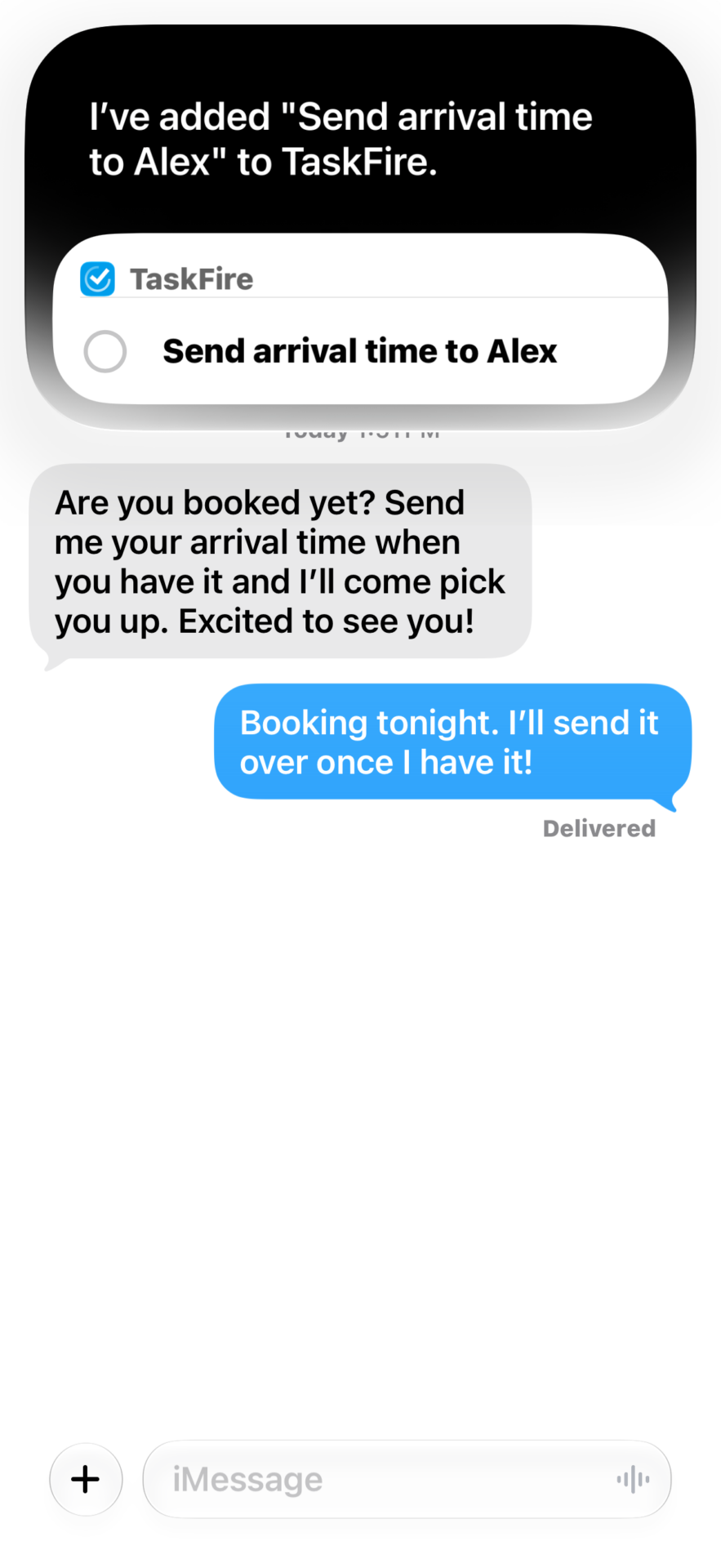
Looking at a text that says “send me your arrival time when you have it”: “Hey Siri, add this to TaskFire”
The ask becomes a task, and the text is saved in the note so you always know who asked.
3. A whole list, all at once
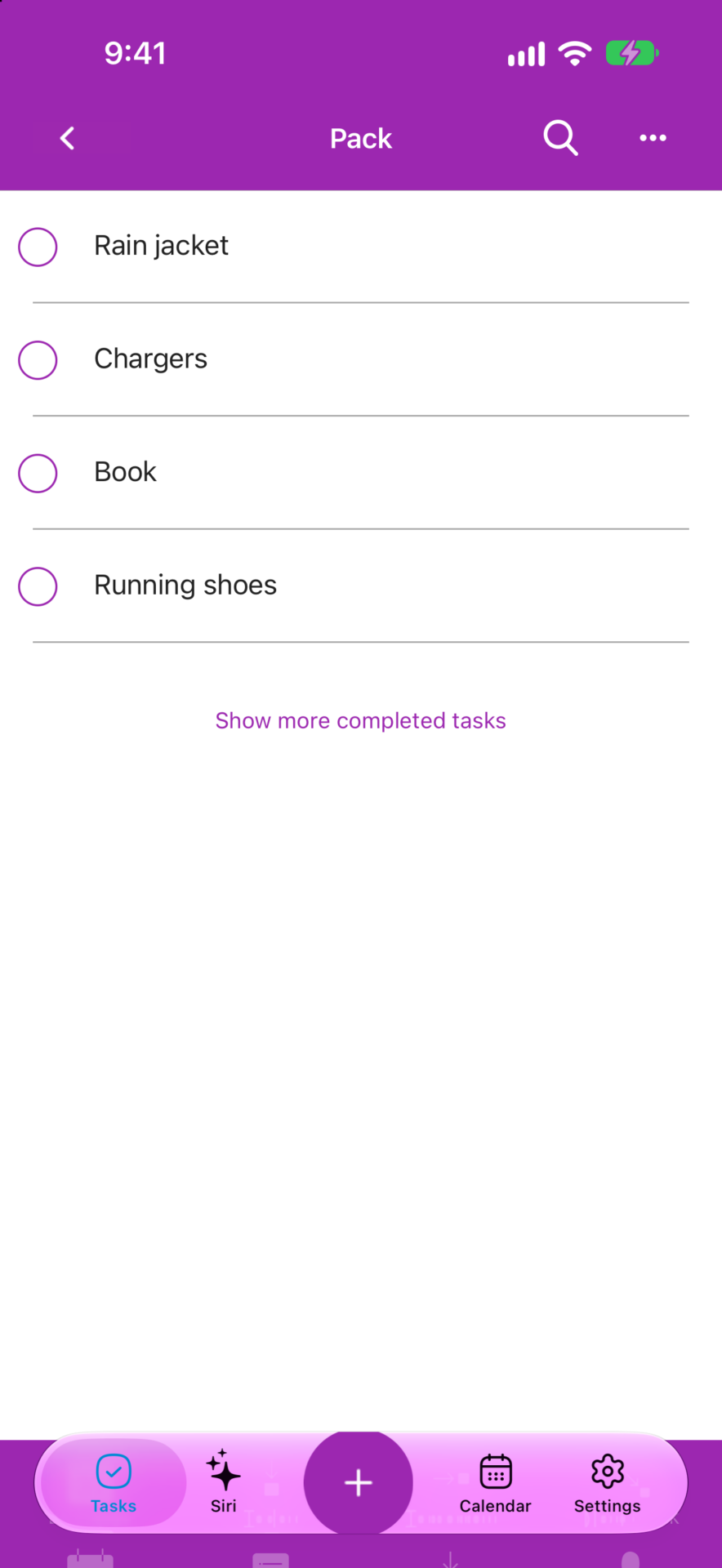
Looking at a packing list in Notes: “Hey Siri, add these to TaskFire”
Every line becomes its own task. Zero typing.
4. Your reminder, waiting in the parking lot (TaskFire 12.1)
On a hardware store’s product page: “Hey Siri, remind me about this in TaskFire when I get to Home Depot”
It sees the product, finds the store, and taps you on the shoulder in the parking lot.
5. A task and a text, in one sentence
“Hey Siri, add fix the fence to TaskFire and text Brian about it”
Two apps. One sentence. No switching.
Talk to it like a person
6. Every detail at once
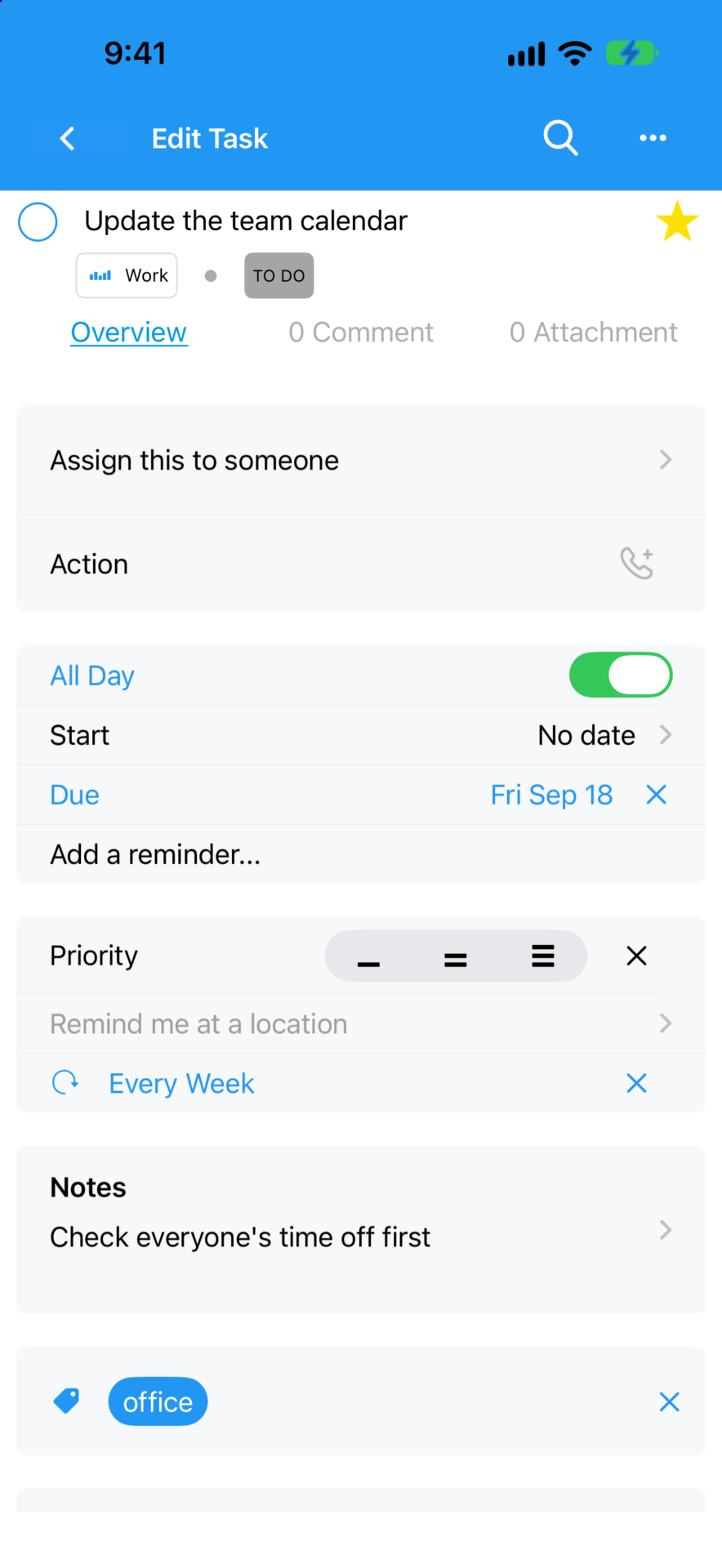
“Hey Siri, add update the team calendar Friday to my Work list, repeat it every week, tag it office, star it, and add the note check everyone’s time off first, in TaskFire”
A date, a list, a repeat, a tag, a star, and a note. Zero taps.
7. Change your mind halfway through
“Hey Siri, add call the dentist Tuesday, no wait, Wednesday at 2, in TaskFire”
Talk like a human. Siri AI keeps up.
8. The one you always forget
“Hey Siri, in TaskFire, add water the plants every week”
Set it once and never think about it again.
9. Never pay for a free trial again
“Hey Siri, in TaskFire, add cancel the streaming free trial on October 20th”
Cancel before they charge you. Every single time.
10. Vague is fine
“Hey Siri, add call Mom tonight in TaskFire”
“Tonight” lands at 8 PM. “Friday morning” lands at 9 AM. Say it the way you’d say it to a friend.
11. Let it do the math
“Hey Siri, in TaskFire, add follow up with the landlord in two weeks”
Two weeks from today, figured out for you.
It sees what you see
Siri AI can see what’s on your screen, right on your iPhone. When something you’re looking at turns into a to-do, just say so.
12. The email that’s really a to-do
Looking at an email asking you to send over the signed form by Friday: “Hey Siri, add this to TaskFire”
The ask lands on your list with the email saved in the note. No copying, no pasting.
13. The package that’s on its way
Looking at a shipping email: “Hey Siri, add this to TaskFire for the day it arrives”
Siri reads the delivery date right off your screen. You never type a thing.
14. A web page, link included
On a recipe, a product, or an article: “Hey Siri, add this to TaskFire”
Tap the task later and you’re right back on the page.
15. Screen plus a time
On a concert page: “Hey Siri, add this to TaskFire for Friday at 10, when tickets go on sale”
You’ll be first in line.
16. The restaurant you keep meaning to try
Looking at a place in Apple Maps: “Hey Siri, add this to TaskFire”
The name becomes the task. The address goes in the note.
17. That thing you saw in an ad
Scrolling past something on Instagram: “Hey Siri, add this to my Wishlist in TaskFire”
Save it now. Decide later.
18. Your friend’s recommendation
Looking at a friend’s post about a restaurant: “Hey Siri, add this to my Places to Try list in TaskFire”
Finally, a home for every “you HAVE to try this place.”
Point your camera at it
With Visual Intelligence, your camera becomes an inbox.
19. The flyer on the fridge
Point your camera at a school flyer: “Hey Siri, add this to TaskFire”
Field trip, bake sale, picture day. On your list before the flyer falls off the fridge.
20. The handwritten list
Point your camera at a sticky note or a whiteboard: “Hey Siri, add these to TaskFire”
Your chicken scratch, now a real to-do list.
Ask, then act
Siri AI knows a lot about the world. Ask it something, then turn the answer into a to-do in the same breath.
21. The leftovers question
“Hey Siri, how long does cooked rice last in the fridge? Remind me in TaskFire to toss it by then”
A food safety answer and a reminder, in one breath.
22. A trip, planned in one sentence
“Hey Siri, plan three days in San Francisco and put the must-dos on a new TaskFire list called San Francisco”
A travel planner and a to-do list, in one sentence.

23. The best time for a run
“Hey Siri, when’s the coolest time to run on Sunday? Add go for a run then in TaskFire”
It checks the forecast so you don’t have to.
24. The recipe, scaled and shopped
Looking at a recipe: “Hey Siri, double this, leave out the cilantro, and add what I need to my Groceries list in TaskFire”
Dinner for eight. Shopping list done. Cilantro-free.
25. Only if it’s missing
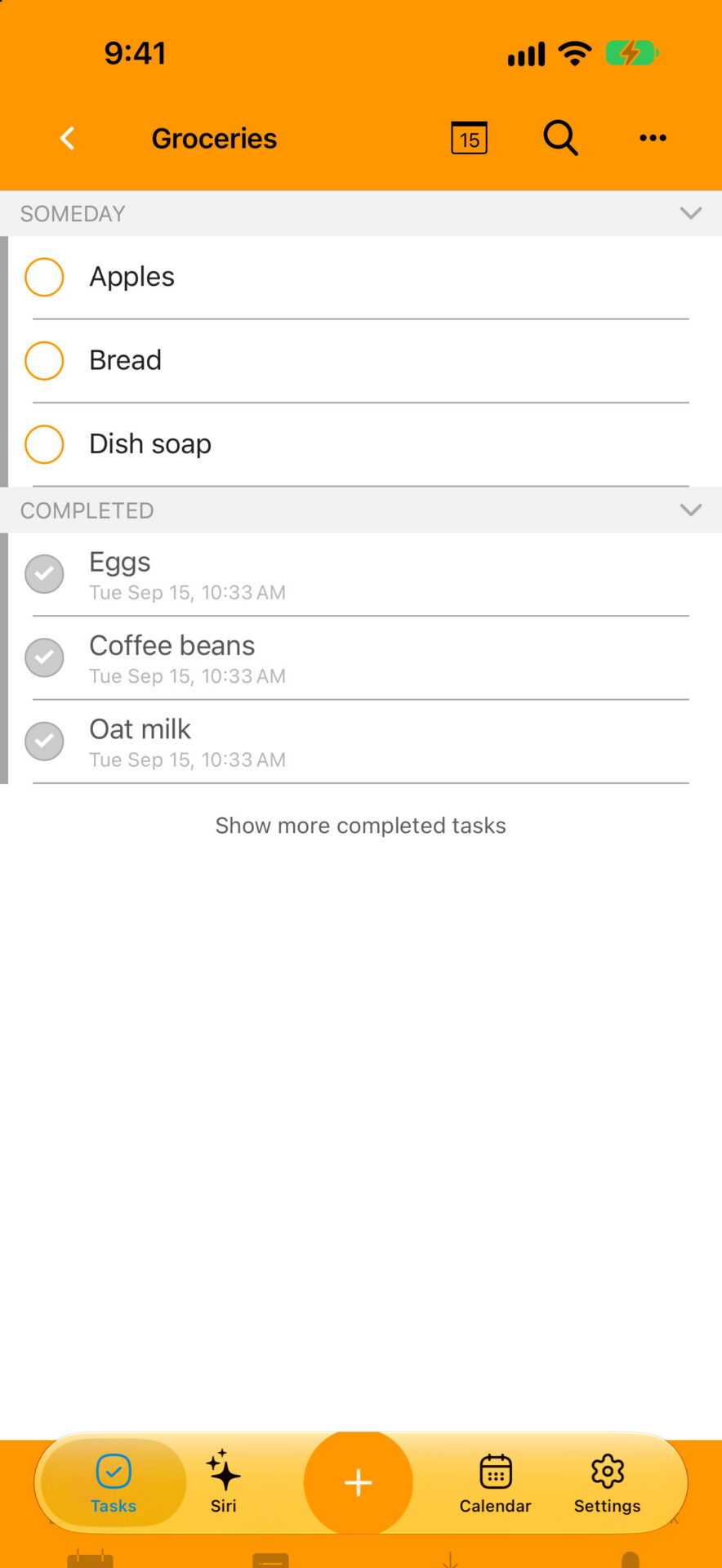
“Hey Siri, if bread isn’t already on my Groceries list in TaskFire, add it”
No more coming home with two loaves of bread.
Ask about your list
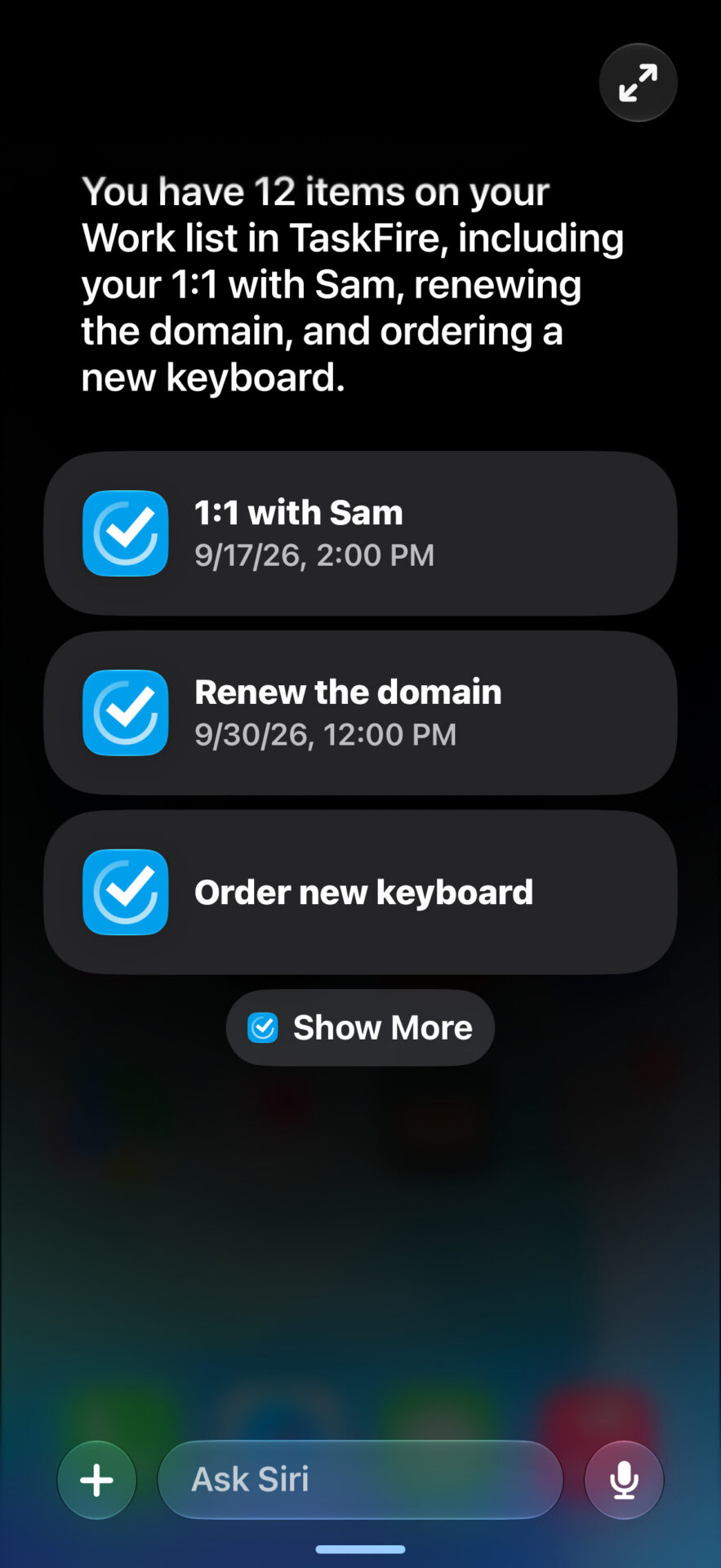
26. What’s on it?
“Hey Siri, what’s on my Work list in TaskFire?”
Walking into a meeting? Just ask.
27. Read me the note
“Hey Siri, in TaskFire, what does the note on renew my passport say?”
Hands on the wheel, notes in your ear.
28. Everything with a tag
“Hey Siri, show my tasks tagged travel in TaskFire”
Every travel task, in one place.
Remind me when I get there (TaskFire 12.1)
29. Arriving
“Hey Siri, in TaskFire, remind me to buy stamps when I get to the post office”
Siri finds the post office. TaskFire reminds you as you pull in.
30. Leaving
“Hey Siri, add call the bank when I leave the office in TaskFire”
The reminder hits right as you walk out the door.
31. Any store, by name
“Hey Siri, in TaskFire, remind me to return the shoes when I get to Target”
No more driving home with the shoes still in the trunk.
One sentence, more than one app
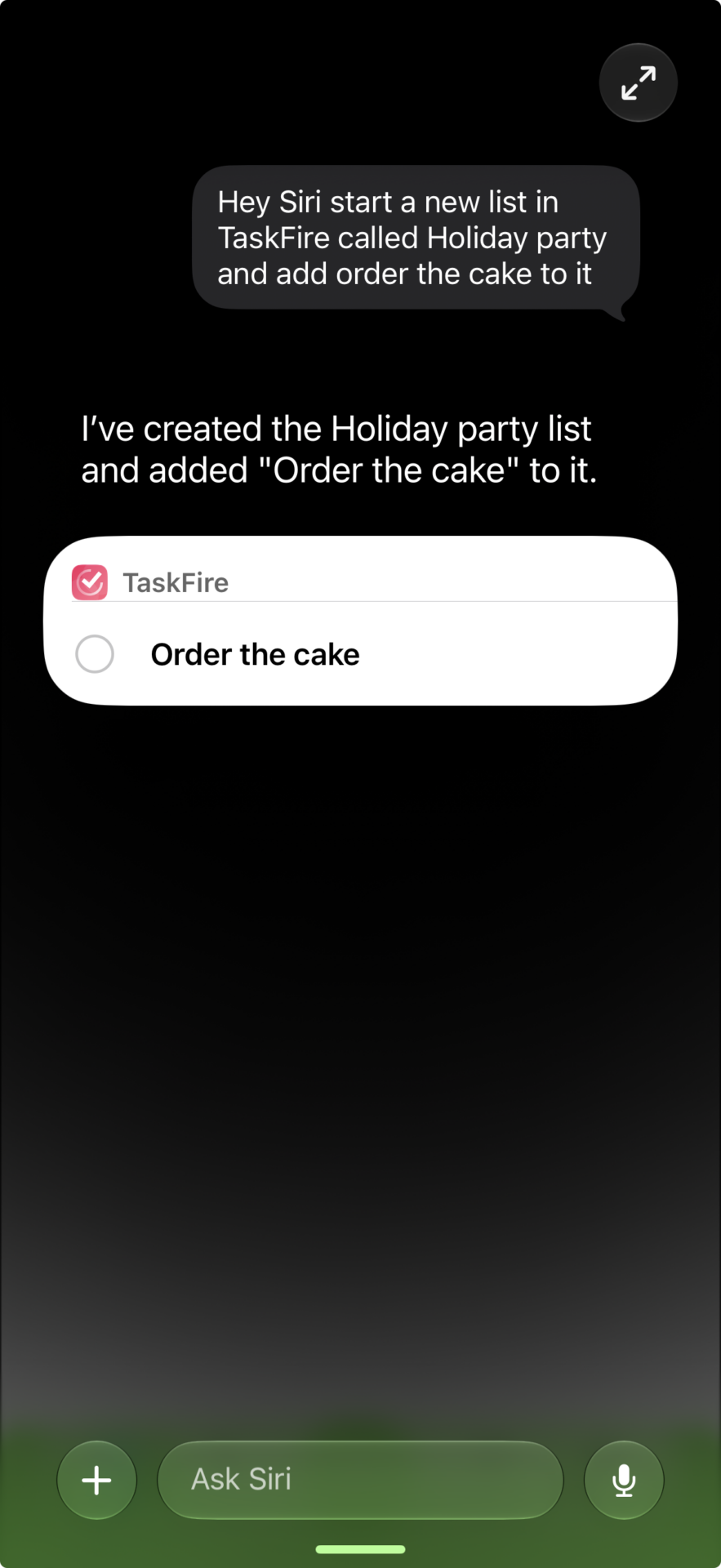
32. A new list, already started
“Hey Siri, start a new list in TaskFire called Holiday Party and add order the cake to it”
A brand-new list with its first task, in one go.
33. Task plus your calendar
“Hey Siri, add dinner reservation next Saturday at 6 PM in TaskFire and add it to my calendar”
On your list and on your calendar, from one sentence.

34. Promise it, then track it
“Hey Siri, text Sarah that I’ll bring the chairs, and add bring the chairs Saturday in TaskFire”
Say you’ll do it, and never forget you said it.
Beyond your to-do list
Siri AI does a lot more than tasks. Here are 15 quick ones we love. Watch how often the answer ends up on your list anyway.
35. “Hey Siri, what have I said I’d do that I haven’t done yet?”
It checks your messages, email, and reminders, and hands you the list. One more sentence and they’re all in TaskFire.
36. “Hey Siri, what’s the confirmation number for my flight?”
37. “Hey Siri, what time should I head out for the wedding?”
Then: “Remind me in TaskFire to leave at 3:30.”
38. “Hey Siri, how long until Mark’s birthday?”
Then: “Add buy Mark’s gift to TaskFire for next Friday.”
39. “Hey Siri, which apartment is the party in tonight?”
It knows which party.
40. On a backpack’s product page: “Hey Siri, will this work as a carry-on for next month’s flight?”
Then: “Add this to my Packing list in TaskFire.”
41. Looking at a photo of a receipt: “Hey Siri, split this between four of us”
42. Camera on a sign in another language: “Hey Siri, translate this”
43. Camera on a business card: “Hey Siri, save this person to my contacts”
44. Looking at a long PDF: “Hey Siri, give me the short version”
Then: “Add this to TaskFire for Friday.”
45. In your recent calls: “Hey Siri, save the number that just called as the movers”
46. “Hey Siri, add Doug’s happy hour to my calendar and email Casey that I’m coming”
47. “Hey Siri, push my guitar lesson to Monday”
48. “Hey Siri, put the Zoom link in my 2 o’clock”
49. “Hey Siri, lock the front door at midnight every night”
Notice how often the answer turned into a to-do? That’s the habit worth building. And the fastest way to build it is #50.
50. Run a Shortcut by name
“Hey Siri, Sunday Walkthrough”
Siri AI runs any Shortcut you’ve made, just by saying its name. And that’s where things get really good.
Shortcuts: your to-do list on autopilot
Siri AI does what you ask. Shortcuts do what you’d forget to ask.
Everything so far starts with “Hey Siri.” But the most powerful thing you can do with TaskFire doesn’t start with anything. Shortcuts watch for the moments that turn into to-dos (your morning alarm, a text from your partner, an email from your boss) and add the task before you even notice.
Your to-do list starts filling itself in.
Our Shortcuts action can set everything on a task: title, due date, list, tags, star, note, and repeat.
Here are the five we can’t live without. Tap Get this Shortcut, add it, and put in your own info. Each one takes about a minute.
1. Your morning chief of staff
You turn off your alarm. Before your feet hit the floor, your phone has looked at your calendar and the weather and put everything you need to prep today at the top of TaskFire, starred.
Like having an assistant who gets up earlier than you.
Get this Shortcut · Setup guide
After you add it: if you wake up to a different alarm, tap Wake-Up and pick yours.
2. The “can you grab…” text
Your partner texts “can you grab milk on the way home?” and it’s on your list before you’ve even read it.
Never forget a “can you grab” text again.
Get this Shortcut · Setup guide
After you add it: change the sender from TaskFire to the person it should listen for.
3. The email that needs something from you
Pick the one or two people whose emails always come with a to-do, like your boss or your kid’s teacher. When their email lands, Apple Intelligence pulls out whatever they’re asking for and adds it to TaskFire with any deadline they mentioned.
The ask is on your list before you’ve even opened the email.
Get this Shortcut · Setup guide
After you add it: change the sender to the email address it should watch. Works with the Apple Mail app.
4. The Sunday walkthrough
Every Sunday night, TaskFire shows you next week’s calendar. Check the events that need prep and skip the rest. For each one you pick, it asks what you need to do. Dentist Tuesday? “Find the insurance card.” Flight Thursday? “Check in and pack chargers.”
Each answer lands on your list the day before the event, with the event’s name on it: “Find the insurance card (Dentist).”
Monday you will thank Sunday you.
Get this Shortcut · Setup guide
After you add it: turn it on. It runs Sundays at 7pm, and you can change the time.
Pick this one or the morning chief of staff, not both. They both turn your calendar into prep, so running both will double up.
5. Bills, handled in one tap
Looking at a bill? Open the PDF or the statement page, tap Share, then tap Bills. Apple Intelligence reads who it’s from, the amount, and the due date, and adds “Pay [company] [amount]” to TaskFire on the right day, tagged bills.
No more surprise late fees. No more “wait, when was that due?”
Get this Shortcut · Setup guide
After you add it: nothing to set up. It shows up in your Share menu.
Make them yours
- Change anything. Open any Shortcut to switch the list, the time, the tag, or who it listens for.
- Name it something you can say. Siri AI runs any Shortcut by name, so “Sunday Reset” beats “Shortcut 4.”
- Curious how it works? Open any Shortcut to see every step, and change whatever you like.
- Need help? Our setup guide walks through all five, with screenshots.
Take the Siri AI challenge
For one day, before you pick up your phone to do something, ask Siri AI first. Add the task, send the text, set the reminder, check your list. Only pick up your phone when you have to. See how far you get.
Where to go from here
Your to-do list used to wait for you. Now it listens. Try #1 right now. By tomorrow, you’ll wonder how you ever typed a to-do.
Don’t have TaskFire yet?